In Mapp Intelligence, analyses can be saved for future use in two ways: under My Analyses or as a Report Element. This allows you to quickly access frequently used analyses without having to recreate them each time.
Overview of Saving Options
The table below highlights the key differences between saving an analysis to My Analyses and saving it as a Report Element:
Capabilities | My Analyses | Report Element |
|---|---|---|
Save data table (with selected dimensions and metrics) | ✅ | ✅ |
Apply filters | ✅ | ✅ |
Customize metrics (e.g., filtering or renaming) | ✅ | ✅ |
Schedule automated dispatch (email, CSV, Excel) | ❌ | ✅ |
Share with other Mapp Intelligence users | ❌ | ✅ |
Explanation of Capabilities
Save data table (with selected dimensions and metrics):
Save analyses with your chosen dimensions and metrics for easy access later. This helps you quickly revisit key data views without starting from scratch.
Apply filters:
Store your applied filters, making it faster to access specific subsets of data the next time you open the analysis.
Customize metrics (e.g., filtering or renaming):
Within a single analysis, you can adjust metrics by applying filters or renaming them for clarity. All these changes can be saved to tailor your analysis to your specific needs.
Schedule automated dispatch (email, CSV, Excel):
Set up automated delivery of your saved reports to be sent on a daily, weekly, or monthly basis. Reports can be delivered in various formats, such as email, CSV, or Excel, helping you keep stakeholders informed without manual effort.
Share with other Mapp Intelligence users:
Share your saved report elements with other users within your Mapp Intelligence account. Shared analyses will appear directly in their dashboards, allowing for seamless collaboration.
Saving Analyses to “My Analyses”
The My Analyses section allows users to save their analyses permanently for easy access. This option is ideal for users who want to revisit and adjust their analyses over time.
How to Save:
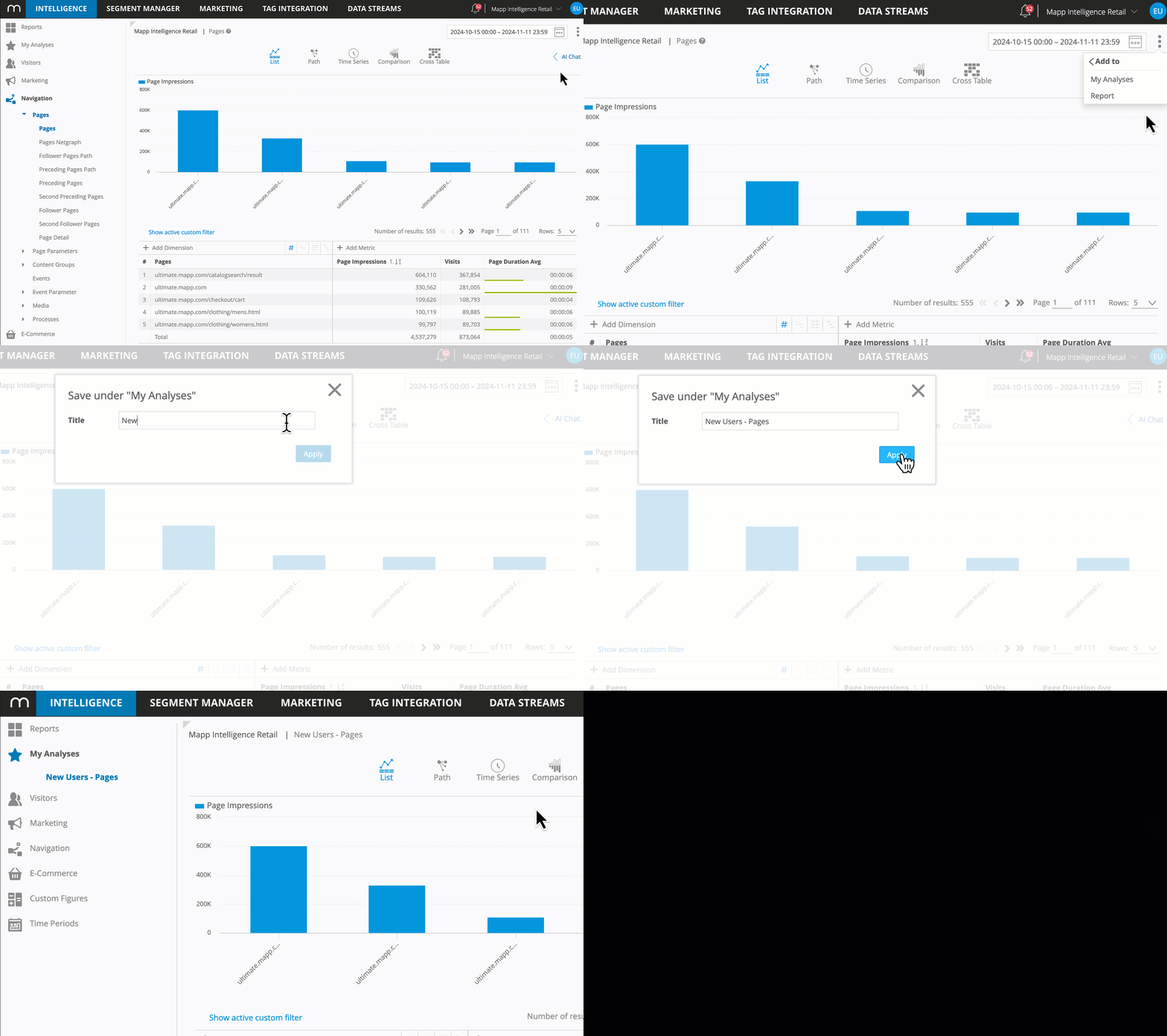
Click on Add to > My Analyses.
Choose an informative title to easily identify your saved analysis later.
Capabilities:
Includes saving data tables, search filters, and custom metrics.
Saved analyses are listed alphabetically in the main menu.
How to Delete:
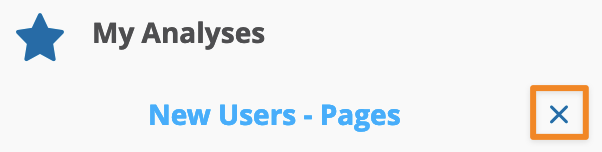
To delete a saved analysis, click the delete icon next to the analysis entry in the main menu.
Limitations:
Does not support scheduled dispatch or sharing with other users.
Saving as a Report Element
Saving an analysis as a Report Element provides additional capabilities, especially for collaborative reporting and automated dispatch.
How to Save:
Click on Add to > Report.
Specify a name for your report element.
You will then have the option to either:
Create a new report and include this analysis as a new report element.
Add the analysis to an existing report, allowing you to expand on reports you’ve already set up.
Capabilities:
Supports scheduled dispatch for automated report delivery in formats like email, CSV, or Excel.
Enables sharing with other users, making it ideal for team collaboration.
For detailed instructions on customizing reports, refer to the Custom Reports training document.
Additional Tips
Regularly review your saved analyses and report elements to ensure they remain relevant to your current objectives.
Use clear, descriptive titles when saving analyses to make it easier to find them, especially in a shared environment.