Understanding Attributes in Mapp Engage

Prev Next

Overview

An attribute is a property field in Mapp Engage used to store data. Attributes provide flexible storage, allowing you to manage diverse types of information and tailor your marketing efforts.

Key Features:

  • Personalization: Use attributes to customize messages and create targeted audience segments.

  • Data Organization: Store and manage diverse information types to suit your marketing needs.

Overview of attributes in Mapp Engage, highlighting Books_Payment and its reference syntax.

Navigation path

Administration > Attributes > Profile Attributes/Group Attributes/Member Attributes/Address Attributes/Related Data

What can I do in this window?

  • Create a new attribute

  • View attribute details

  • Edit an existing custom attribute

  • Select the data type for the attribute

  • Specify the channels in which the attribute is available

  • Enable/disable enumeration

  • Archive/unarchive attributes

Types of Attributes

Quick Reference Table

Attribute Type

Purpose

Examples

Profile Attributes

Store individual contact information

First Name, Email, Gender

Group Attributes

Share common data for a group

Store Location, Operating Hours

Member Attributes

Manage group-specific data for contacts

Role in Group, Subscription Details

Address Attributes

Auto-generated, primarily for debugging

N/A

Related Data

Storage of large data sets

Contact’s order history

Profile Attributes​

Profile attributes store detailed information about individual contacts, creating a comprehensive profile for each person. These attributes enable personalized messages and tailored marketing campaigns.

Key Features:

  • Personalization: Customize messages and create audience segments.

  • Data Storage: Use standard or custom attributes to meet your marketing goals.

Standard Profile Attributes

  • Default fields that include essential identifiers and personal details. These cannot be removed or renamed.

  • Examples:

    • Identifiers: Email, Mobile Number, Mobile App Alias, External ID.

    • Personal Details: First Name, Last Name, Nickname, Gender, Date of Birth, Country.

For more details, see Profile Attributes documentation.

Custom Profile Attributes

  • Flexible tools for storing contact-specific data.

Example: Custom Attributes in the Contact Profile
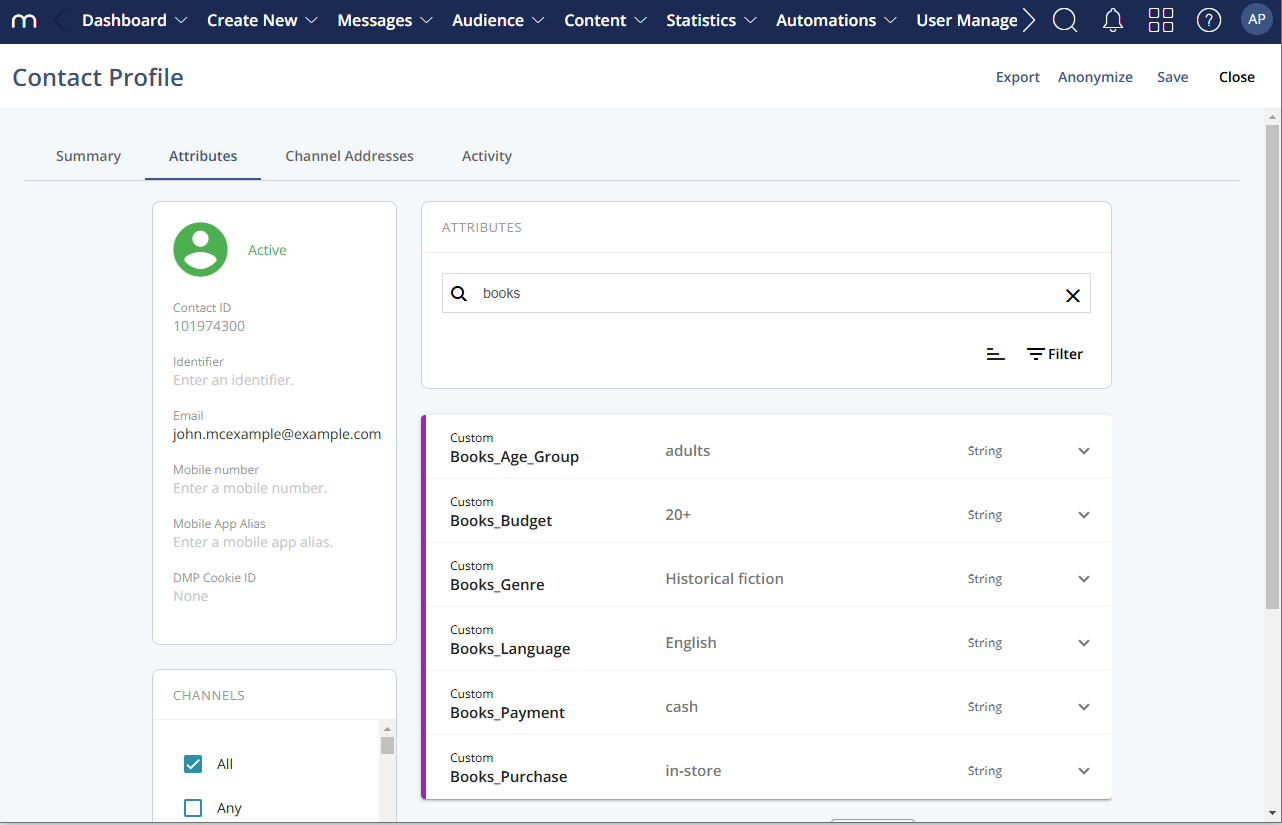
How to View Attributes in a Contact Profile:

  1. Navigate to Audience > Contact Management > All Contacts.

  2. Select the contact profile you want to view.

  3. Open the Attributes tab to:

    • Search and filter attributes.

    • Edit attribute values for the selected profile.

Advantages:

  • Flexibility: Define attributes tailored to your organization (e.g., household size, income bracket).

  • Data Types: All data types allowed (String, Boolean, Number, and Date).

  • Channel-Specific Availability: Restrict usage to specific channels as needed.

  • Enumeration: Use predefined values for consistency.

  • Scalability: Support diverse marketing strategies.

Enumeration

Enumeration refers to predefining a set of available values for a custom attribute. This ensures consistency and efficiency when managing contact information.

How-To:

  1. Create Custom Attributes: Create Custom Attributes

  2. Use enumeration: Attribute Enumeration Management

Group Attributes​​

Group attributes store data applicable to all contacts within a specific group. This is ideal for universal information that changes frequently.

Advantages:

  • Store shared group data (e.g., a local store’s location and hours).

  • Simplify group-targeted messaging.

How-To:

  1. Create group attributes via the interface: Create Group Attributes

  2. Import group attributes: Import Group Attributes

Member Attributes

Member attributes save contact-specific data within a group context. Useful for managing the same contact across multiple groups (e.g., departments or clients).

Advantages:

  • Store unique data for each contact within different groups.

  • Efficiently update or replace large datasets.

Important Notes:

  • If a group is deleted, the associated member attribute data is also removed. To avoid data loss, use the Related Data Criteria feature.

How-To:

  1. Create member attributes: Create Member Attributes.

Address Attributes

Address attributes are auto-generated and primarily used for debugging.

Related Data

Related Data refers to datasets that can be linked to a contact (e.g., via email or UserID). This feature allows advanced segmentation, personalization, and campaign management.

For more details, see Getting Started with Related Data.

Channels

You can define the channels on which your attributes will be available. Every attribute is available on all channels within your Engage system by default. Enable the Channels toggle switch to limit availability to specific channels and select the channels from the drop-down list.

For more information, see Channels.

Attribute References

Attribute references use specific syntax to recognize and process attribute data. These are essential for personalizing messages, importing data, or creating functions in Mapp Engage.

Example Syntax:

  • Use {FirstName} to insert a contact’s first name into a message.

For more details, see Attribute References.

User Interface

Information in the Attributes window

Information

Availability

Description

Attribute name

  • Profile

  • Group

  • Member

  • Address

  • Defines the custom attribute name. Max. characters:

    • Profile Attribute: 80

    • Group Attribute: 100

    • Member Attribute: 25

    • Related Data Set: 50

  • Must be unique within Mapp Engage.

  • Avoid empty spaces and special characters to prevent import issues.

Creator

  • Profile

  • Group

  • Member

Displays the name of the system user who created the attribute

Last Editor

  • Profile

  • Group

  • Member

  • Related Data

Displays the date when the attribute was last edited

Type

  • Profile

  • Address

Displays the attribute type: Standard or Custom

Data type

  • Profile

  • Standard and Custom Attributes:

    • String: Up to 2000 characters.

    • Boolean: True/False.

    • Number: Positive/Negative values; use a period for decimals.

    • Date: ISO-8601 format (YYYY-MM-DDThh:mm:ss+/-GMT).

  • Member and Group Attributes only support the Text format.

Enumerated

  • Profile

Displays whether the attribute is enumerated or not (Yes/No)

Created

  • Profile

  • Group

  • Member

  • Address

  • Related Data

Displays the date when the attribute was created

Last Updated

  • Profile

  • Group

  • Member

  • Related Data

Displays the date when the attribute was last updated

Channel Name

  • Address

Displays the channel name for which the Address Attribute has been created.

Related Data Set Name

  • Related Data

Displays the name of the related data set.

Owner

  • Related Data

Displays the owner’s name.

Status

  • Related Data

Displays the status of the related data set: Ready

Actions in the Attributes window

Action

Availability

Description

  • Profile

  • Group

  • Member

  • Address

  • Related Data

Redirects you to Mapp's online help page for assistance.

  • Profile

  • Group

  • Member

Creates a custom attribute for your Mapp Engage system. Custom attributes store relevant contact data, offering flexibility to align with your digital marketing needs.

  • Profile

  • Group

  • Related Data

Enables selection of attributes.

  • Profile

  • Group

  • Member

  • Address

  • Related Data

Clears all applied filters, restoring the default view.

  • Profile

  • Related Data

Opens the context menu to display different options depending on the tab. For example:

  • Profile tab:

    • Show archived Profile Attributes

  • Related Data tab:

    • For all Related Data Sets:

      • Show archived Related Data

    • For a selected Related Data Set:

      • Change owner

      • Copy

      • Add new Data

  • Profile

Adds the selected attribute to target group analysis in message statistics. Note: Boolean attributes are not supported.

  • Profile

  • Group

  • Member

  • Related Data

Opens the attribute’s details window for editing.

  • Member

Deletes the selected Member Attribute

  • Related Data

Displays the structure of the Related Data Set

  • Profile

  • Related Data

Archives the selected attributes. Archived attributes and their values remain stored and can be reactivated if needed.

  • Group

Deletes selected Group Attributes

  • Group

Opens options to Import or Export Group Attributes.

  • Related Data

Creates a New related Data Set.

Searching & Filtering

Option

Availability

Description

  • Profile

  • Group

  • Member

  • Address

  • Related Data

Allows you to search for attributes by their name using text or numbers.

  • Profile

Enables filtering based on specific attributes.

  • Profile

Filters attributes by data type, such as String, Boolean, Number, or Date.

  • Profile

  • Group

  • Member

  • Address

  • Related Data

Filter by creation and update dates using a specific date or a custom date range.

  • Group

  • Member

Selects the Group for which the Group or Member attributes are available.

  • Related Data

Displays the status of the related data set.

  • Ready: The related data set is ready to use.

  • Importing: Data is being imported into the related data set.

Viewing Attribute Details

  • Click the attribute name to display details:

    • Attribute ID - automatically assigned by the Engage system upon creation

    • Reference - the attribute syntax used by the system to recognize attributes. See Attribute References.

    • Values - the number of defined attribute values

    • Description - an optional description of the attribute
      Profile attributes table displaying custom attribute details for Books Genre.

  • Click More Details to display the enumeration values defined for this attribute:

    Enumeration values for the Books Genre attribute in Mapp Engage system interface.