Overview
Create a contact group in Mapp Engage to organize recipients and manage sendout settings at the group level. Contacts can be added or imported after a group has been created.
Permissions
You must have permission 304: Group Administration: Create Group in order to create a group. If this permission is missing, the option to create the group will not be visible in the Engage interface. In this case, please contact your system administrator.
For more information about group permissions, refer to the Group Permissions List.
Navigation Path
Create New > Group
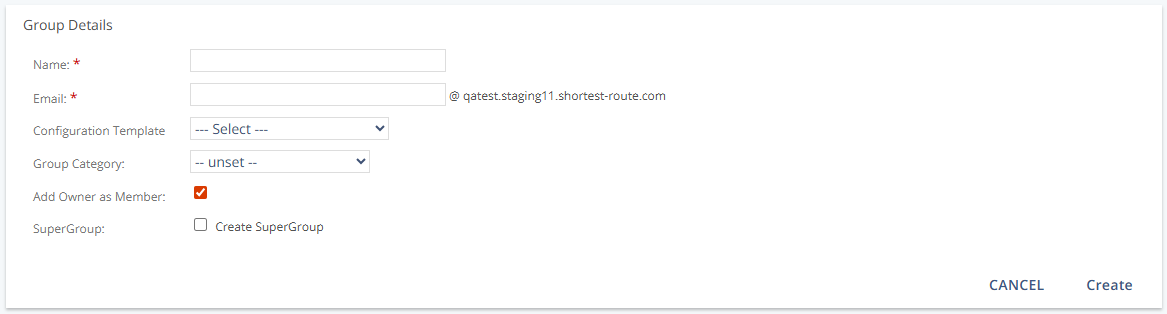
Settings
Setting | Description |
|---|---|
Name | The group's display name. The maximum length is 150 characters. The name can be changed later in group settings. |
Email | The group’s sender email address. The local part must use valid characters; the domain is provided by the system. The address can be changed later in group settings. The From Address sets the name and email address that contacts see as the sender of the email in their inboxes. For more information, see Reply Handling (tab). |
Configuration Template | Applies a stored configuration template to the group so predefined settings are applied automatically on creation. See Configuration Template Notification (tab) for details. |
Group Category | Assigns a category that can be used for analysis, automations, and related processes. |
Add Owner as Member | This adds the group owner as a member. This membership is the same as any other member's and can be removed. |
SuperGroup | Creates a SuperGroup that can include subgroups. Messages sent to the SuperGroup are received by all subgroup members. |
Actions
Action | Description |
|---|---|
Create | Creates the group. After creation, you can add or import contacts. |