Explore your system's main areas and features. This page provides an overview of the key sections of the user interface, guiding you to the most relevant tools and functionalities.
Primary Navigation
Start
Displays an overview of recent activities. Learn more.
Dashboard
Quick access to:
Start: Overview of contact and activity summaries. Learn more.
Reports: Generated reports. Learn more.
Processes: Background tasks and system processes. Learn more.
Create New
Quick access to commonly used actions:
Message: Start creating emails, SMS, or push notifications. Learn more.
Group: Create and manage contact groups. Learn more.
Whiteboard: Create and edit automation workflows. Learn more.
Attribute: Create and manage contact attributes. Learn more.
Messages
Expand this section for message-related workflows:
Outbox: View sent and scheduled messages. Learn more.
Prepared Messages: Manage saved messages for automations or templates. Learn more.
Draft Messages: Access unsent drafts for further editing. Learn more.
Inbox Rendering: View rendering results for different inboxes. Learn more.
AMP Email: Manage AMP emails. Learn more.
Push Notifications: Access push notification settings. Learn more.
Web Push Notifications: Reach your contacts through their preferred browser. Learn more.
In-App Messages: Manage in-app messages. Learn more.
System Messages: View system-generated messages. Learn more.
Limitations: Control how many messages a contact receives. Learn more.
Calendar: Plan campaigns and monitor send-out schedules. Learn more.
Audience
Manage contact and profile data:
Contact Management: View and edit contact details. Learn more.
Blacklists: Manage lists that block messages to certain contacts. Learn more.
Segmentation:
Segmentation Builder: Drag-and-drop tool to create segments. Learn more.
Personalization: Create personalized content. Learn more.
CI Segments: Use predefined segments from Mapp Intelligence. Learn more.
Deactivated: View deactivated contacts. Learn more.
Group Management: Manage contact groups for targeted messaging. Learn more.
Location Management: Define and target locations via mobile apps. Learn more.
Content
Create and manage content:
Email: Define your email building blocks. Learn more.
Content Store: Store reusable content elements. Learn more.
Voucher Manager: Manage coupon codes for campaigns. Learn more.
Landing Pages: Create and publish landing pages. Learn more.
CMS Message: Create and edit CMS messages. Learn more.
Microsites: Build web pages, subscribe pages, and unsubscribe pages with drag and drop. Learn more.
Statistics
Measure message performance:
Group Messages: View KPIs for group sendouts. Learn more.
Single Messages: View KPIs for individual sendouts. Learn more.
Contacts: Analyze audience development. Learn more.
Sources: Evaluate the origin of contact data. Learn more.
Automations
Set up automated campaigns and workflows:
Whiteboards: Manage and create automation workflows using the drag-and-drop interface. Learn more.
Automations: Our legacy automation tool. Learn more.
User Management
Manage system users and permissions:
System Users: Create and manage user accounts. Learn more.
Permissions: Configure roles, permissions, and transfer security settings. Learn more.
Data Management
Handle integrations and exports:
Mapp Connect: Use add-ons and API connections to exchange data between third-party applications and Mapp Engage. Learn more.
Exports: View and manage data exports, including XSLT style sheets for transforming XML export files. Learn more.
Administration
Manage system settings and configurations:
Attributes: Manage detailed profile, group, and address data. Includes access to Related Data for storing large datasets in the cloud. Learn more.
Categories:
Link: Group links for evaluation. Learn more.
Message: Assign categories to messages. Learn more.
Group: Categorize groups for easier management. Learn more.
Conversion Tracking: Monitor and assess conversions. Learn more.
Content Element: Organize content elements. Learn more.
Sources: Categorize and evaluate data origins. Learn more.
Log Tracker: Monitor recent activity on your system. Learn more.
Channels:
App: Manage mobile app messaging. Learn more.
SMS: Set up SMS messaging. Learn more.
Web: Configure web push notifications. Learn more.
System Settings: Adjust basic system settings, including passwords and feature configurations. Learn more.
Account: Manage user credits and credit allocations.
eCommerce: Search and manage Product Catalog data, orders, transactions, wishlists, and abandoned carts. Includes options for manual imports. Learn more.
Usage Statistics: Monitor system usage and quotas. Learn more.
Inbox Services: Set up inbox rendering and inbox monitoring. Learn more.
Utility Navigation
The right-hand top navigation gives you immediate access to different tools, settings, and information sources in your system.

Access additional tools, settings, and information:
Search: Find items across your system. See "Global Search" below.
Notifications: Currently unavailable: This feature is no longer functional and will be removed in a future update.
Switch Tools: Access tools such as Dashboards.
Help: Context-sensitive help provides guidance for your current view.
User Settings: Adjust personal settings, including:
Account settings: Update personal details.
Interface language: Change system language. See "Changing the Interface Language" below.
Inactivity Timeout: Adjust session length (default: 30 minutes).
Logout: End your session securely.
Global Search
The global search lets you search for any element (e.g., Messages, Groups) and contact in Mapp Engage.
Navigation Path
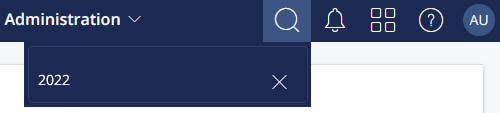
In the top navigation, click the search symbol and enter your search criteria.
What can I search for?
Element by name. The search result shows any element that matches the search criteria.
Element by ID. The search result shows only the element that matches the complete ID.
Contacts by email address, mobile number, and mobile app alias. You can either search for the full email address, mobile number, or app alias or a local part. For example, you can search for the part before the @ sign.
Date Picker
Many areas of Mapp Engage (e.g., Segmentation, Whiteboards, Statistics filters) use a common date picker component with the following selection modes:
Criterion | Description |
|---|---|
Specific Date | Allows you to select a specific date. The whole day is considered.
|
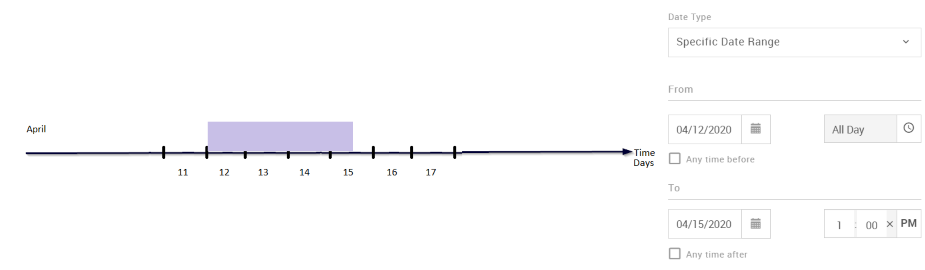
Specific Date Range | Allows you to select a specific time range. By providing two dates, you can include (or exclude) entire days or specify the time boundaries. Open boundaries can be used both for "From" and "To":
The preview at the bottom shows and displays a warning in case the Time Range is invalid. It also shows you the time zone that is used for this selection.
|
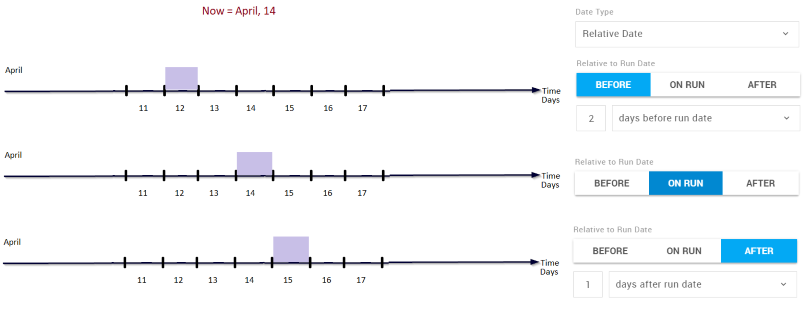
Relative Date | Allows you to pick a specific day without providing a calendar date. Instead, you can make the date dependent on when the selection is executed. There are three different options:
|
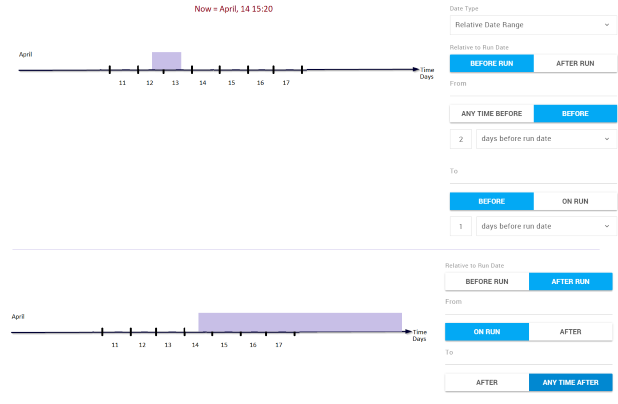
Relative Date Range | Allows you to select the time interval that is related to the moment in which the selection is executed. There are two options available here: Before Run defines the time range in the past that was related to the moment of the selection run.
After Run works with future time intervals.
|